Configuration view
The extension also comes with a configurator to view your local data. The configurator updates automatically whenever a file is saved and allows you see your changes immediately.
Open the configurator
There are multiple ways to open a configurator.
Light bulb quick action
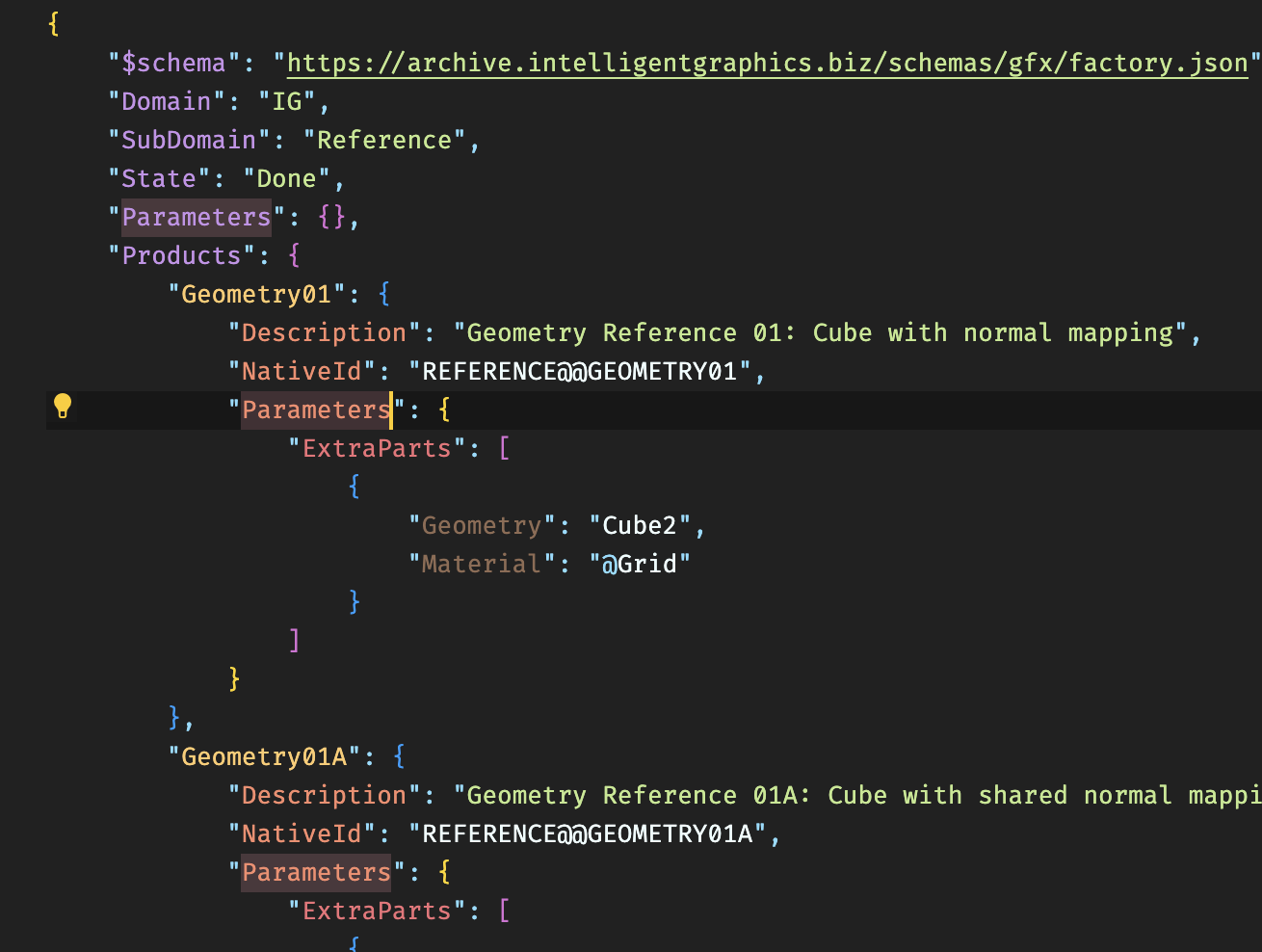
The extension provides a quick action for every factory product. You can find the quick action in the light bulb menu when your cursor is active within a product definition. Choose the Configure product option after clicking on the light bulb.
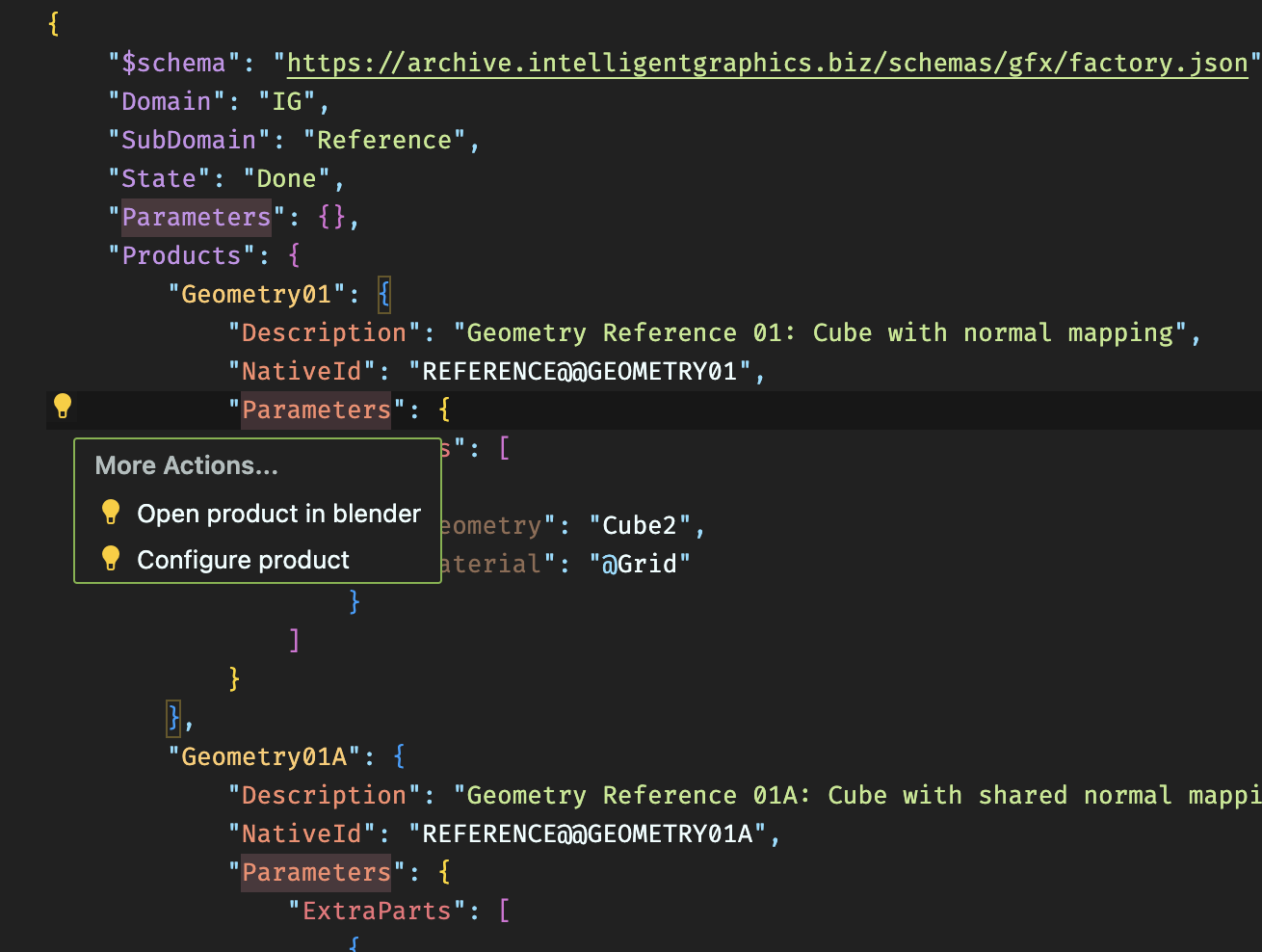
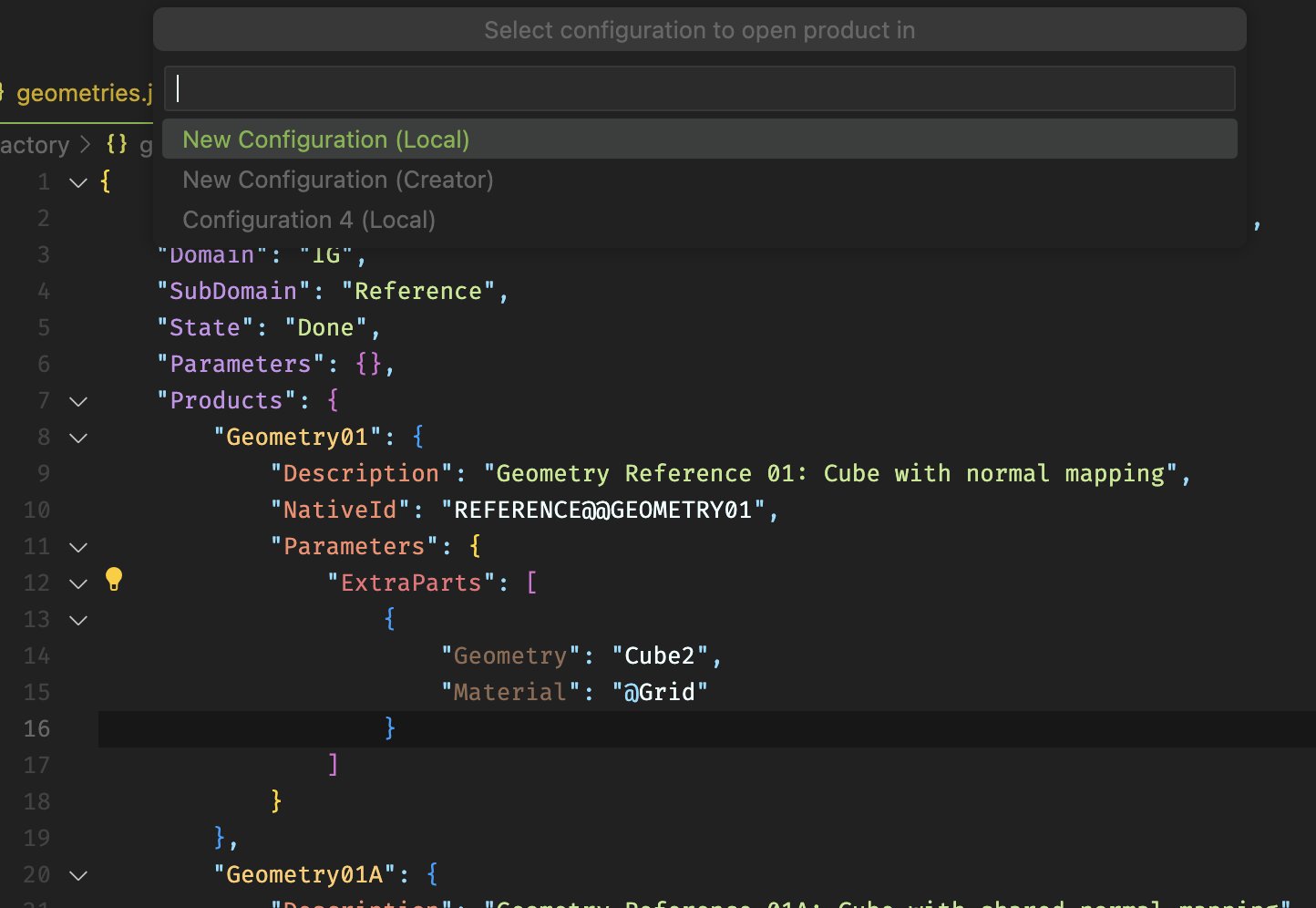
Afterwards a menu will open at the top of the screen allowing you to choose the configuration you want to open product in. You can either create a new configuration with it's data being provided locally or by the created, or alternatively add the product to any existing, opened configuration.
Command palette
There are also commands that you can execute through the command palette to create a new configuration view.
You can open the command palette using the key F1 or through the combination CMD + Shift + P or CTRL + Shift + P depending on your system.
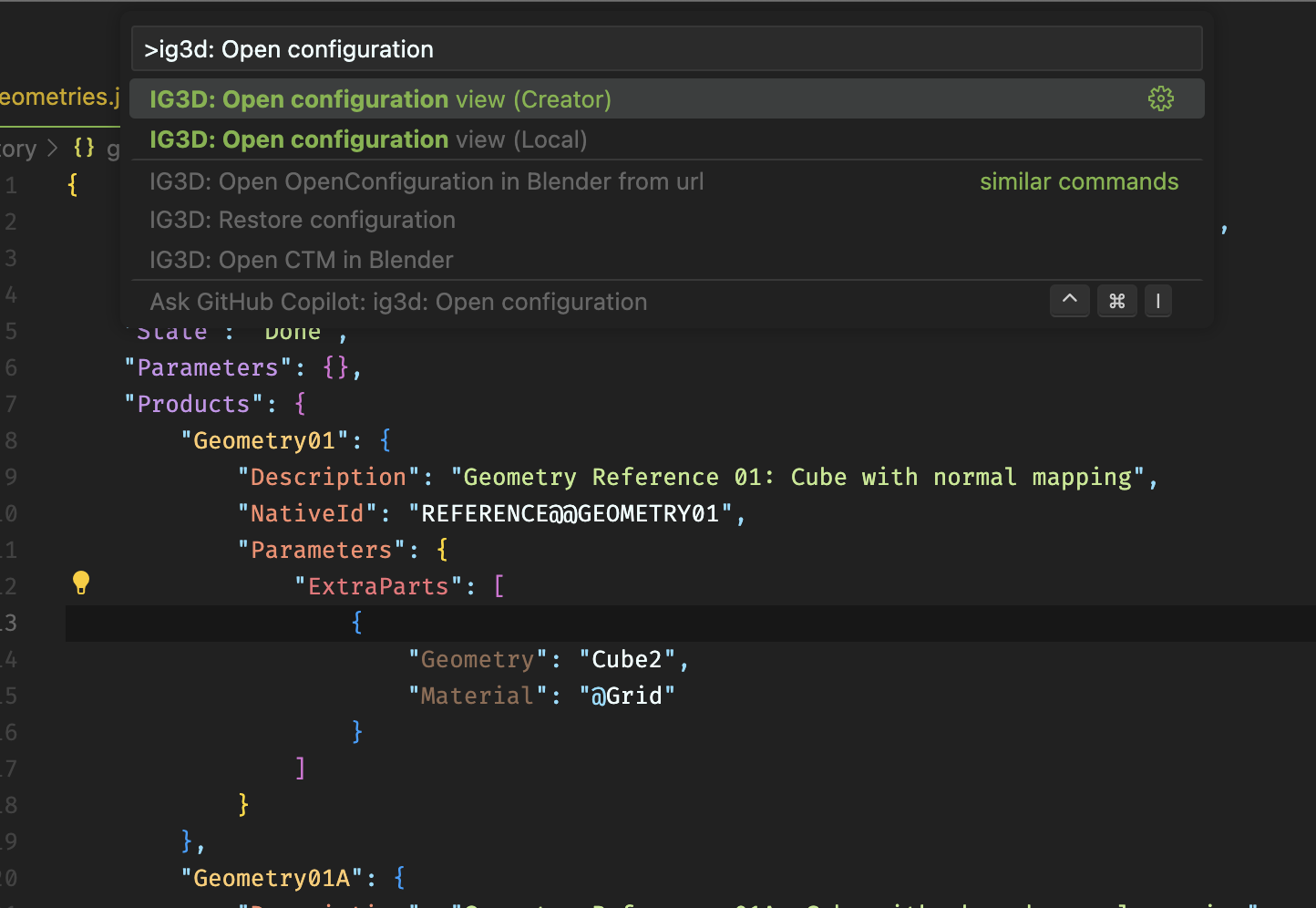
The actions Open configuration view (Creator) and Open configuration view (Local) can be used to create a new configurator instance.
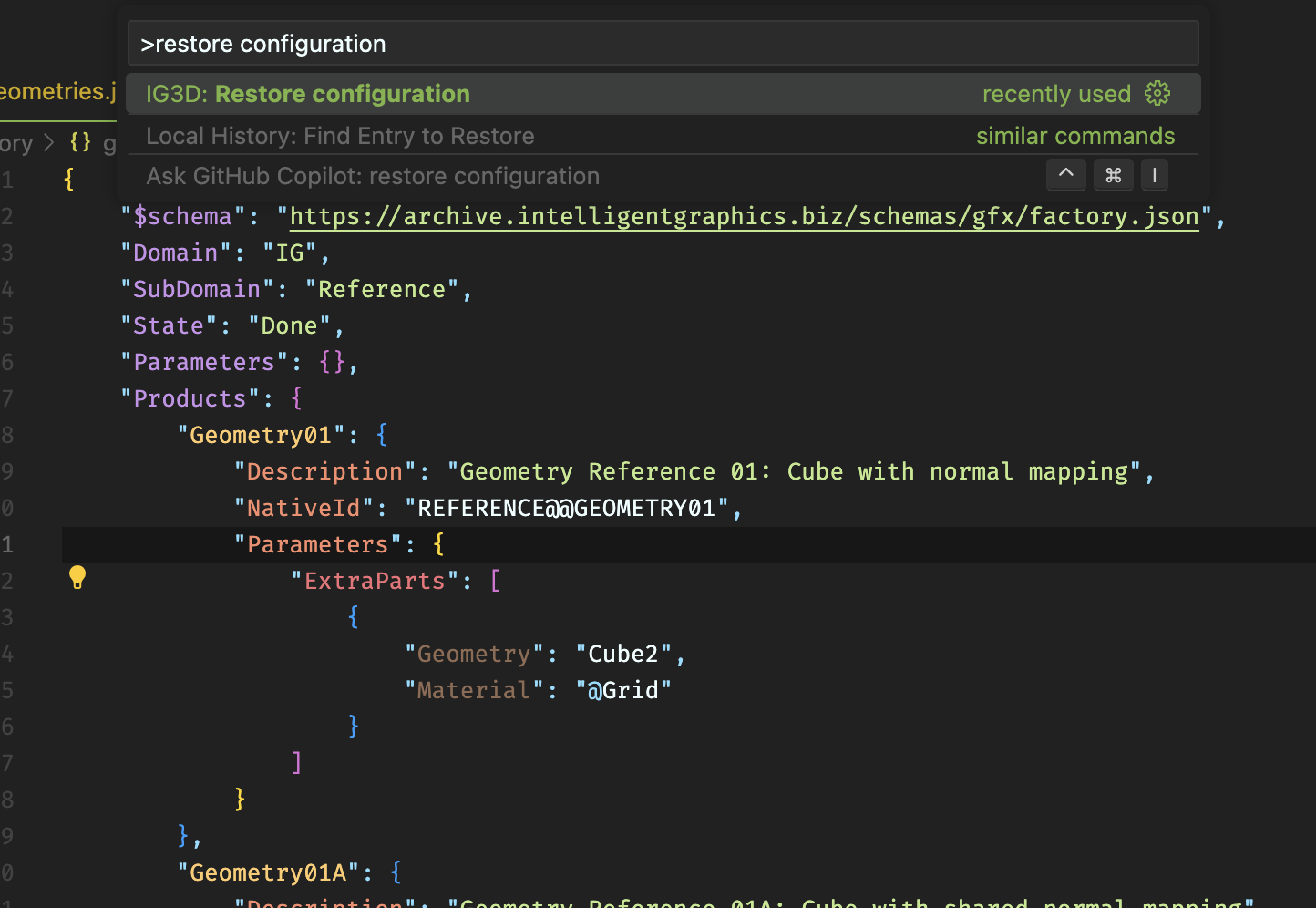
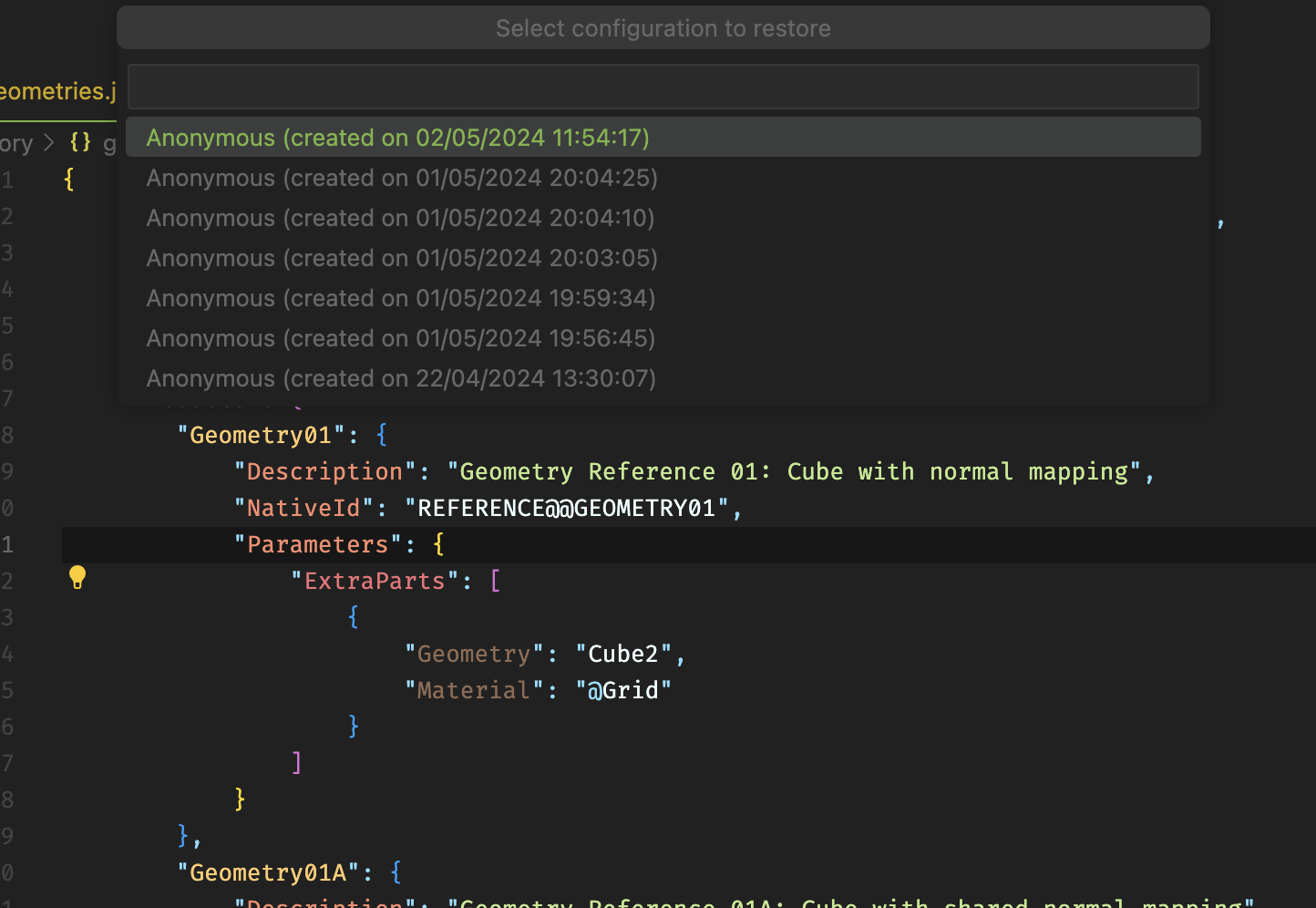
Aditionally there is also a command to restore recent configurations. You can use this command to reopen configurations that were used in the last 30 days and those that have been marked as permanent.
Configurator UI
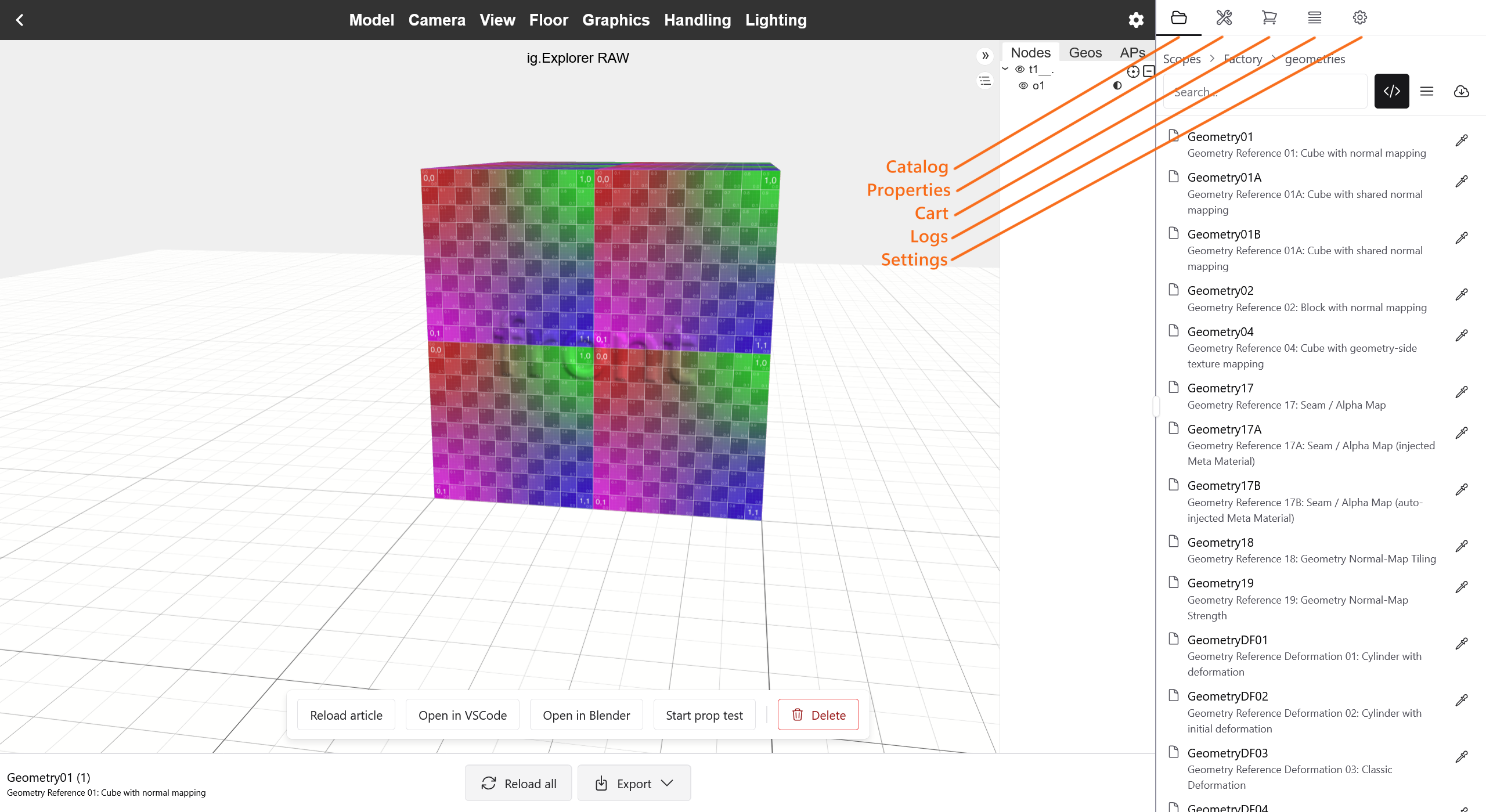
Reload Article
Reloads graphics for current article.
Open in VSCode
Opens the corresponding article in the factory script.
For products created from a factory .json file, this navigates directly to the product definition within the corresponding file. For products created from a factory .ts file, this only opens the file containing the product definition and does not navigate directly to the definition itself.
Open in Blender
Opens the current article in its current configuration in Blender, will also create Materials in the shader editor.
Start prop Test
Reload all
Reloads graphics for all articles in the scene
Export
Opens menu for export options:
Export as OC Zip
Exports the current scene as an OC Zip. The export is temporary. To save it permanently move the generated file to another folder.
Export as test
Creates a test.json file for the current scene, storing all products and their attributes (such as positions and properties) for testing.
See Tests for details.
Open in Blender
Opens the current scene in Blender with all products, including loading the current materials, into the Shader Editor.
Create loadable pin
Creates a custom ID for the current scene, allowing it to be restored with the VSCode IG3D ’Restore Configuration by Pin’ command and shared across users.
Catalog
The catalog allows you to add products to the scene. Browse or search for products, then select one to insert it into the current scene.
You can change how products are organized in the catalog using the sorting controls next to the search bar:
-
Sort by Factory File: Organizes products in the following hierarchy:
Scope → Factory File → Products. -
Sort Flat: Lists all products directly under
Scope → Products, without grouping them by factory file. -
Sort by Commercial: Organizes products using the commercial catalog as defined in the creator.
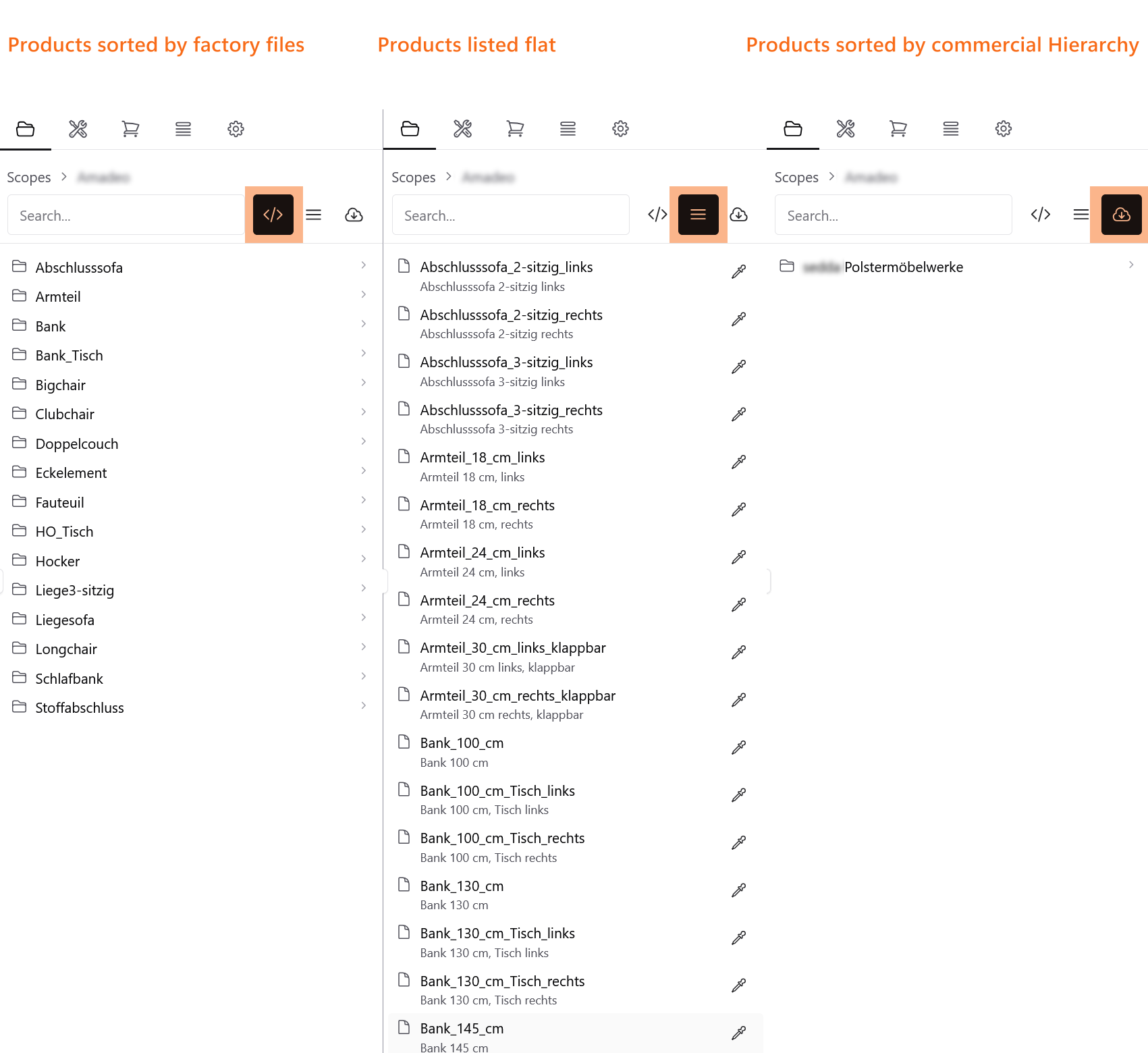
Scope
Lists all scopes detected in the project directories currently opened in VS Code. If multiple VS Code instances are open with different project directories, the scopes from all detected projects are listed.
Factory
Lists all factory files within the selected scope that contain at least one product.
Products
Lists all available products. In Commercial mode, this list also includes products that are not contained in any factory file within the currently opened project directory. In all other modes, only products that are defined in a factory file are listed.
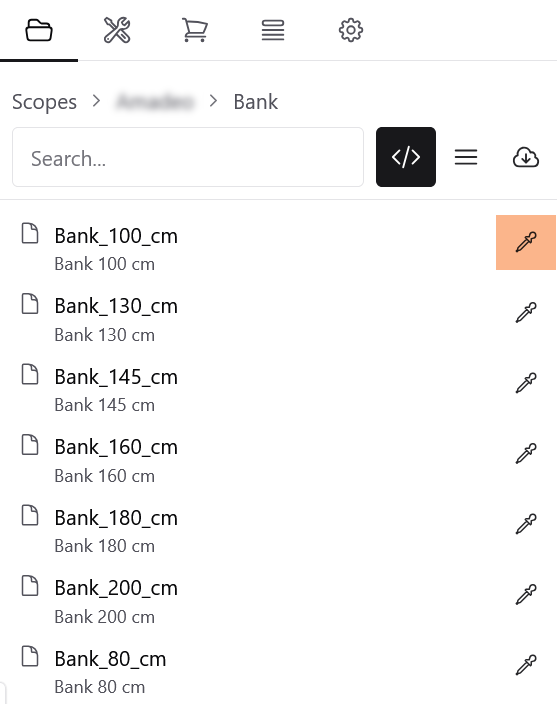
Pipette
Products selected with the pipette tool inherit the configuration of the most recently created product.
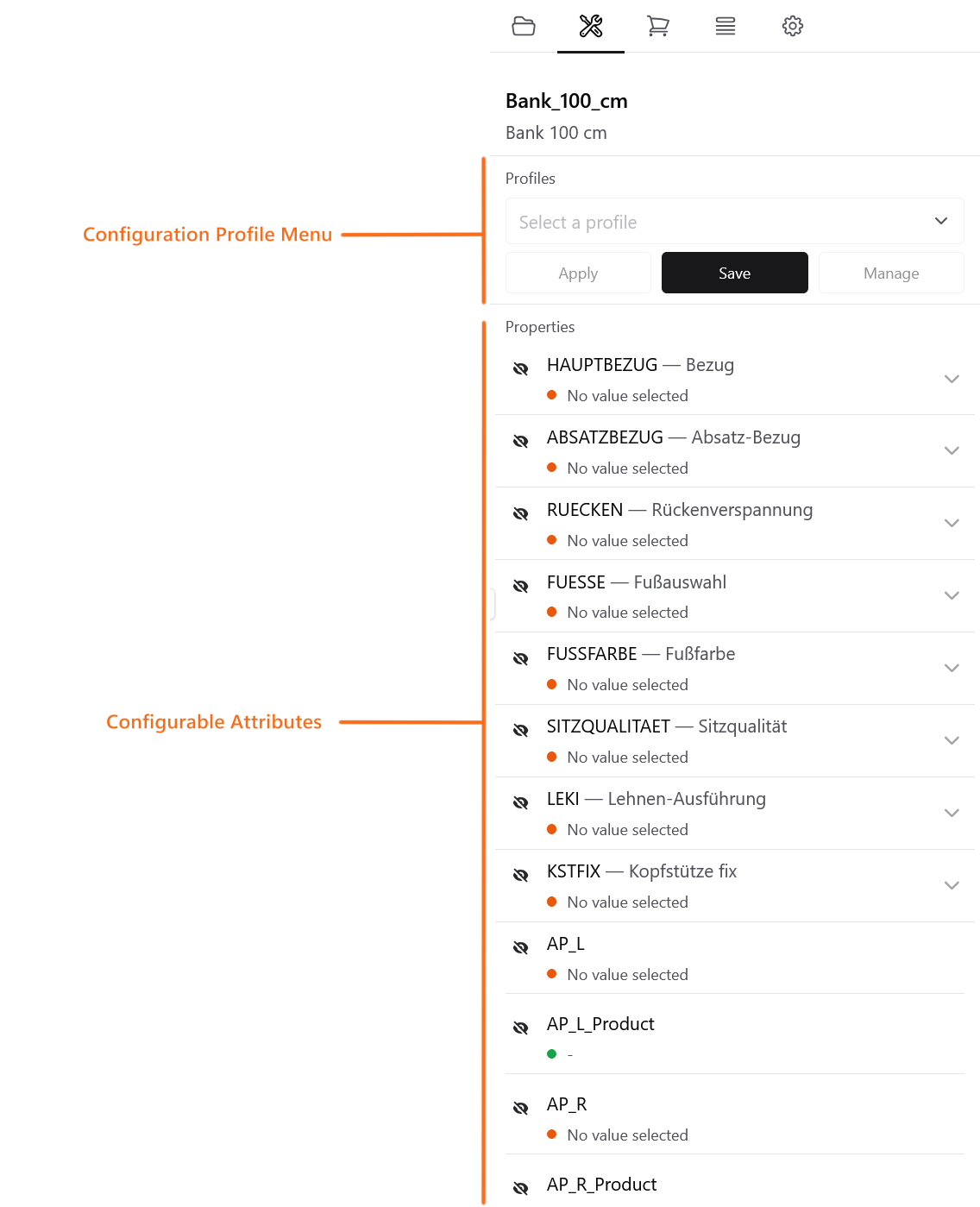
Properties
Provides a property editor for configuring the commercial attributes of the selected product. The available attributes are loaded from the commercial backend configured in ig.Creator.
Additionally, this page includes the Profile menu, which allows product configurations to be saved as presets for later reuse.
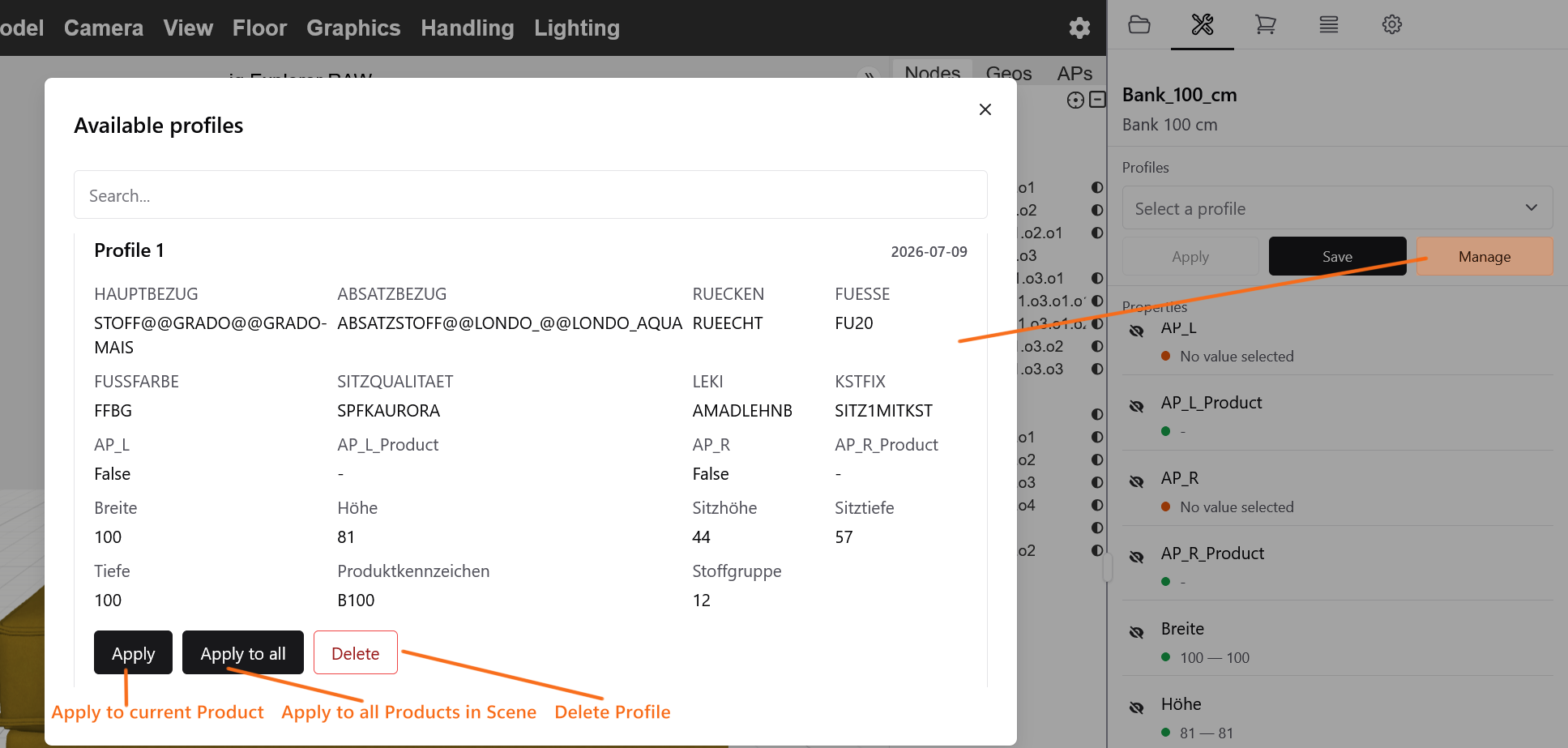
Profile Manager
Lists all previously created Profiles for this project.
Basket
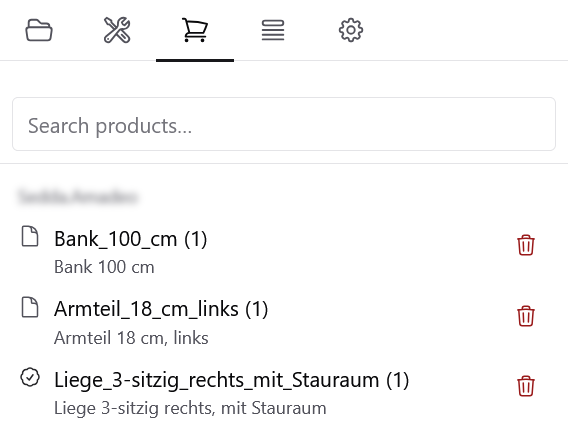
This panel lists all products currently used in the scene. Use the search field to locate a specific product. Click a product to select it, or click the trash icon to remove it from the scene.
Logs
Operation Logs
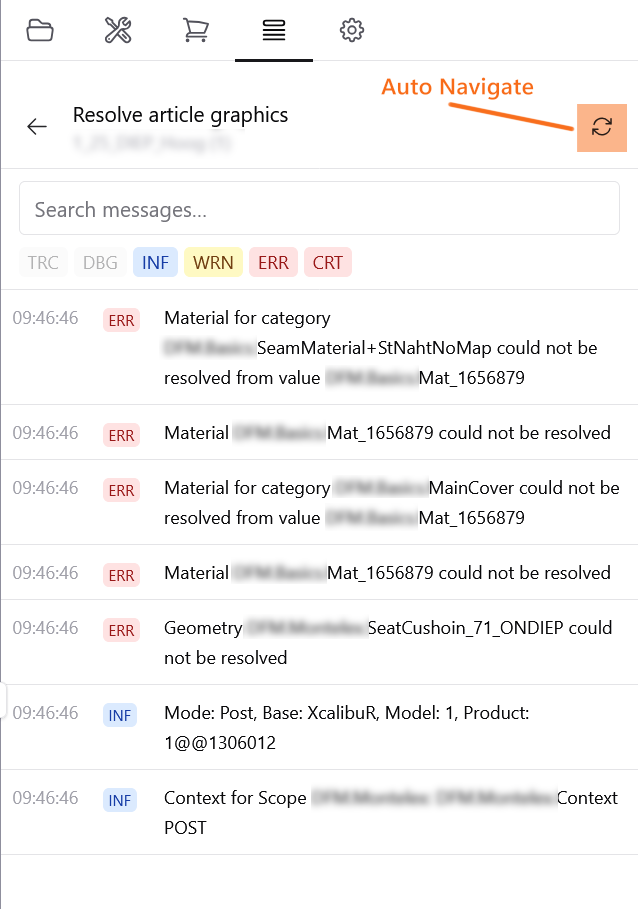
Lists the Operation Logs for each product in the scene. Selecting a log opens the Resolve Article Graphics menu. Logs for a specific product can be found by searching for its name in the search bar. Logs are displayed in chronological order and are updated whenever the product changes, such as when a property selection is modified, the product is edited in the factory script, or the article is reloaded manually.
Resolve article graphics
Provides an overview of graphical components with resolution errors, such as materials and geometry. Any script errors that prevent complete product resolution are listed here to assist with debugging and bug fixing.
Auto Navigate
Automatically navigates to the updated the logs for this specific article. Otherwise, the logs must be selected manually from the Operation Logs overview.
Settings
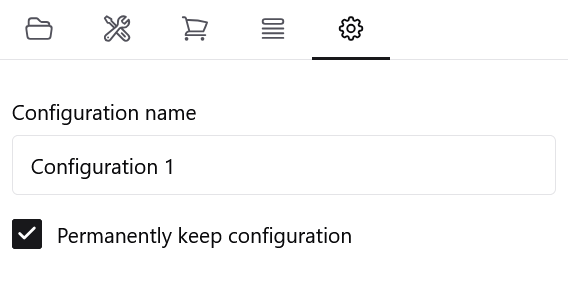
Assign a custom name to override the browser window title and the configuration name displayed in the Restore Configuration dialog. The updated name becomes available in the restore list after the configuration window is closed.
Assigning a custom name for the first time automatically marks the configuration as permanent.
Use the checkbox below to explicitly control whether the configuration is stored permanently. Configurations that are not marked as permanent are automatically removed 30 days after their last use.